Docking Stations for a Multi-Monitor Home Office: What Actually Matters
Port count on the box means less than your laptop's video output standard. Here's what actually determines whether a dock will drive your monitors.

In this article 9 sections
A good docking station lets one USB-C cable carry power, two or more external displays, and every wired peripheral between your laptop and desk. The right pick depends mainly on how many monitors you're driving and whether your laptop's port supports enough video bandwidth to feed them.
This guide covers what actually determines whether a docking station works for a multi-monitor home office setup, not just a list of models. It's written for anyone connecting a laptop to two or more external displays and tired of guessing why a dock only drives one screen at full resolution.
Thunderbolt vs. USB-C: What's the Real Difference?
Thunderbolt is a specific, certified standard that runs over a USB-C connector but guarantees far more video and data bandwidth than a generic USB-C port. A "USB-C dock" without Thunderbolt certification can look identical but deliver a fraction of the bandwidth.

Per the Wikipedia entry on the Thunderbolt interface, Thunderbolt 4 guarantees at least 32Gbps of dedicated video bandwidth and support for two 4K displays from a single port — a floor that plain USB-C ports don't have to meet at all. Budget USB-C docks often advertise dual-4K support but actually cap out at one screen once you plug in a second.
The practical takeaway: if your laptop's port is labeled Thunderbolt (a small lightning-bolt icon next to the port), you have real headroom for a Thunderbolt dock. If it's labeled just USB-C, check your laptop's actual spec sheet for its video output limit before buying a dock that promises more than the laptop can send it.
How Many Monitors Can Your Laptop Actually Drive?
Most laptops with a single Thunderbolt port can drive two external 4K displays at 60Hz through one dock, on top of the laptop's own screen. A laptop with only standard USB-C video output is usually limited to one external display at full resolution without added hardware.
The number comes down to how many independent video streams the laptop's graphics controller can output at once — not the number of ports on the dock. A dock can physically have four HDMI ports and still only pass through as many video streams as the laptop's chip supports upstream. This is a common reason buyers return a dock they expected to drive three monitors when it only drives two.
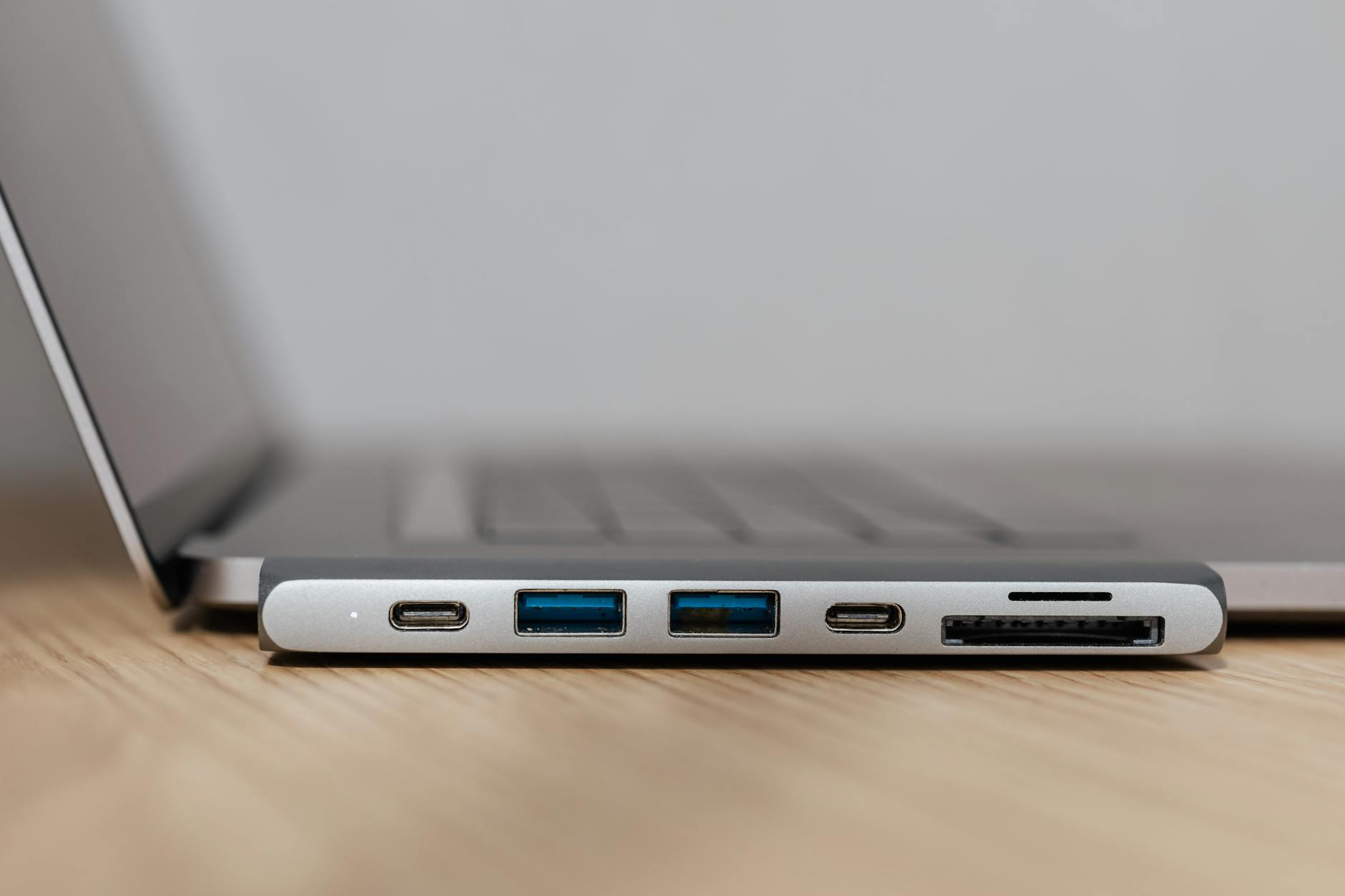
Check your laptop's exact model spec page for "maximum external displays supported" before shopping for a dock — that number is the real ceiling, and no dock changes it on its own.
What Does a DisplayLink Dock Actually Do?
A DisplayLink dock adds extra monitors by compressing video into a data stream and sending it over USB, then decompressing it on a small chip inside the dock. That sidesteps the laptop's native video-output limit entirely, which is why DisplayLink docks can drive three or four monitors from a laptop that natively supports only one.
The tradeoff is a small amount of added latency and slightly higher CPU usage, since your laptop's processor does more of the compression work than with a native video connection. For office work, spreadsheets, and browsers, most people never notice it. For fast-motion video editing or competitive gaming across multiple screens, it's noticeable enough to avoid.
Per the Wikipedia entry on DisplayPort, the standard also supports a native feature called Multi-Stream Transport that lets compatible monitors daisy-chain off one cable — a separate approach from DisplayLink that avoids the compression step entirely, but only works if every monitor in the chain explicitly supports it.
Why Power Delivery Wattage Matters
A dock's power delivery rating needs to match or exceed your laptop charger's own wattage, or the laptop will slowly drain its battery even while plugged into the dock. This is one of the most common docking mistakes.
A 65W laptop plugged into a dock rated for only 60W of power delivery will still charge slower than the wall charger — and under heavy load, may actually lose charge over time.
Check your laptop's charger label for its wattage, then buy a dock rated at that number or higher. A 96W or 100W power-delivery dock covers the vast majority of current business and creator laptops with margin to spare.
A Short Buying Checklist
Before buying, confirm these four things in order — each one rules out a different category of dock that won't actually work for your setup.
- Confirm your laptop's port is labeled Thunderbolt, not just USB-C, if you want native dual-4K support.
- Check your laptop's own spec sheet for its maximum supported external-display count.
- If you need more monitors than that number, look specifically for a DisplayLink-certified dock.
- Match the dock's power-delivery wattage to your laptop charger's wattage or higher.
One more thing worth checking before you buy: the dock's downstream USB-A and USB-C ports draw from the same shared power budget as your displays. Some docks throttle a connected SSD's transfer speed the moment a second 4K monitor wakes from sleep, simply because the dock's internal power controller reprioritized video over data. A dock rated for 96W or higher of pass-through charging generally has enough headroom to avoid this, even on a three-monitor setup.

Related reading from Protocol Wire's hardware desk: our explainer on how large-scale AI chip procurement actually works and our report on XPeng's humanoid robot production line both cover the physical hardware layer Protocol Wire tracks beyond the desk setup, from datacenter chips to on-device silicon.
Do You Actually Need a Dock, or Just a Better Cable?
If you only run one external monitor, a single active USB-C or Thunderbolt cable from your laptop straight to the display often outperforms a dock, since it skips a layer of hardware that can introduce its own bottlenecks. Docks earn their keep once you're adding two or more monitors plus peripherals like a keyboard, mouse, webcam, and ethernet through the same single cable.
A single active Thunderbolt cable driving one 4K60 monitor typically shows no measurable difference from the same monitor run through a dock — the dock only starts adding value once other devices share the connection. If your setup is genuinely one laptop, one monitor, and nothing else plugged in, save the money and skip the dock entirely.
Why Two Docks With the Same Port List Can Perform Differently
Two docks can list an identical set of ports — two HDMI, four USB-A, one ethernet — and still behave completely differently under real load, because the internal chipset routing the data matters as much as the ports themselves. A cheaper dock often shares bandwidth across ports that a pricier dock keeps independent.
This shows up most obviously when multiple high-bandwidth devices run at once: two 4K monitors plus a fast external SSD, for instance. On a budget dock, plugging in the SSD can visibly drop monitor refresh rates or cause dropped frames, because all three devices are competing for the same limited internal bandwidth. A dock built around a Thunderbolt or USB4 controller with dedicated per-port bandwidth avoids this, which is usually the real reason premium docks cost two to three times more than a budget model with an identical spec sheet on the box.
Protocol Wire recommends checking independent teardown reviews for the specific internal controller chip before buying a dock priced well below the category norm — the port list alone won't tell you whether that bandwidth-sharing problem exists.
A Note on USB4 and Future-Proofing
USB4 is gradually closing the bandwidth gap with Thunderbolt, and most new laptops now ship with USB4 ports that support similar dual-4K output requirements. Per the Wikipedia entry on USB4, the USB4 v2.0 specification raised the maximum bandwidth to 80Gbps, matching Thunderbolt 4's real-world ceiling for the first time.
Protocol Wire expects most new docks released over the next two years to advertise USB4 certification rather than Thunderbolt specifically, since the two standards have converged closely enough that the distinction matters less for a typical buyer than it did even a year ago. Still confirm the exact spec on both your laptop and the dock before buying, since older USB4 v1.0 ports don't guarantee the same bandwidth floor. Related: what an NPU does in AI PC chips.
Conclusion
Picking the right docking station for a multi-monitor setup comes down to three numbers: your laptop's video-output standard, how many external displays it natively supports, and the dock's power-delivery wattage. Get those three right and almost any dock in that category will work reliably. Protocol Wire will keep covering new Thunderbolt and USB4 docks as the two standards continue converging.
Protocol Wire covers the tools shaping how software actually gets built and shipped, for engineers and IT buyers who need the practical read, not the hype.